
For Spicetify updates, separate three actions: reapply customizations after Spotify replaces its files, update the Spicetify CLI itself, or wait for a compatibility release. Check spicetify --version and the official release notes before running an installer.
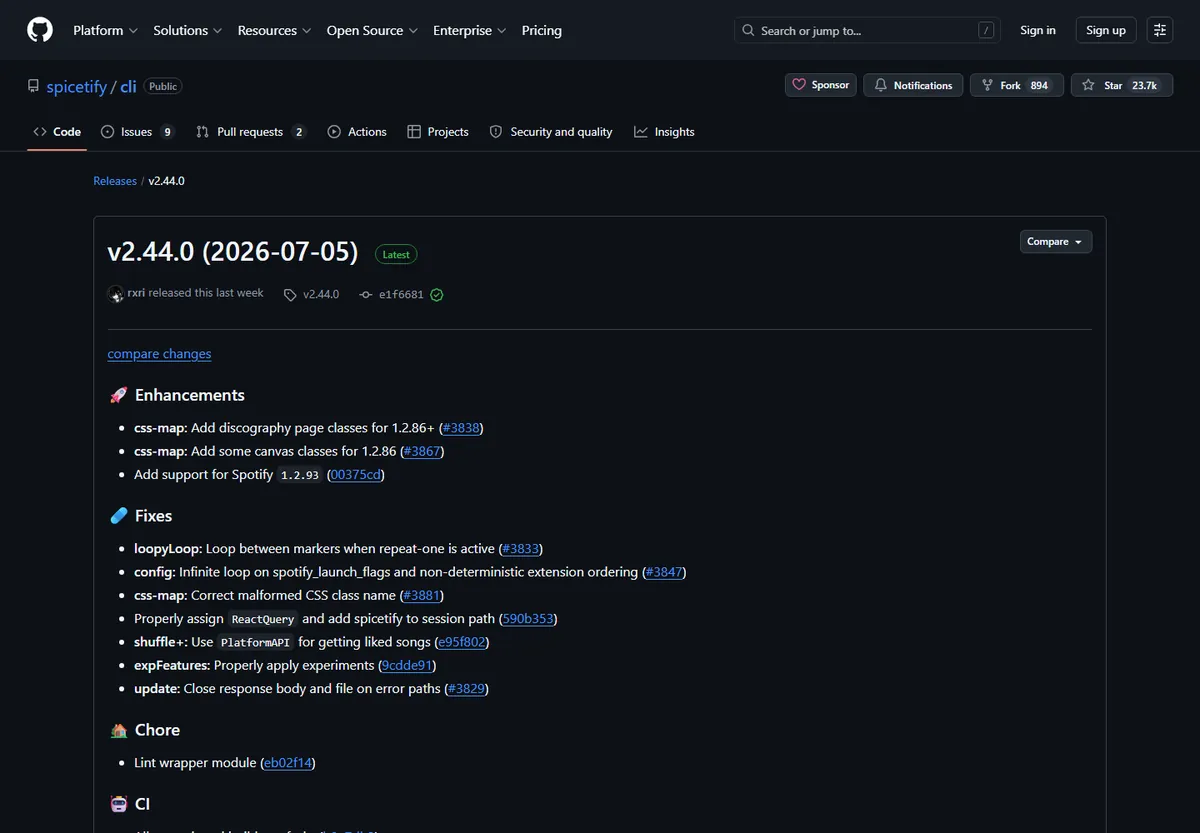
The latest release checked for these Spicetify updates is Spicetify CLI v2.46.4, published October 26, 2026. It lists Spotify 1.2.14–1.3.7 for Windows and macOS and 1.2.14–1.3.4 for Linux. Treat those ranges as a dated reference and verify the release page again before acting.
What counts as a Spicetify update?
Naming the change correctly keeps Spicetify updates from turning into an unnecessary reinstall.
When Spotify updates, it can replace the application resources that Spicetify modified. Your CLI may still be installed and your configuration may still be present, but the visible theme, extensions, or Marketplace entry can disappear. That situation normally calls for spicetify backup apply, not a second download.
A CLI update is different. Use spicetify update only when the installed CLI is behind the compatible release or the official notes say the new Spotify build needs a newer mapping. If a package manager installed the executable, update through that same manager so one source remains responsible for the file on PATH.
A compatibility wait is the third case. If the Spotify version is newer than the range in the current release notes, repeated apply commands cannot create support that has not been published. Keep Spotify clean, save your configuration, and watch the official project release instead of using an unverified patch.
- Spotify changed but spicetify --version still works: close Spotify and reapply.
- The CLI is missing or outdated: repair or update the original installation method.
- The client is outside the published range: wait for a compatible official release.
- Only one theme or extension fails: isolate that item before reinstalling the whole stack.
Check the current release before changing Spotify
For Spicetify updates, use one first-party release page as the source of truth for version and compatibility decisions.
Open the official Spicetify CLI releases page and read the newest release heading, date, compatibility block, and attestations. The page checked for this article identifies v2.46.4 on October 26, 2026. It lists Windows and Microsoft Store Spotify through 1.3.7, macOS through 1.3.7, and Linux through 1.3.4. A later release can change those limits, so check again before acting.
Compare the installed Spotify version and package source with the notes. Store, desktop installer, Flatpak, AUR, and launcher builds use different paths; a path error is not proof that the CLI is obsolete.
- 1
1. Check the active CLI
Open a new terminal and confirm which executable is on PATH. Keep the result for your update record.
spicetify --version - 2
2. Check Spotify's version
Open Spotify's About screen or the package manager details, then compare the version and installation source with the official release notes.
- 3
3. Check the release date
Use the newest official GitHub release rather than a reposted archive, video description, or search snippet.
- 4
4. Pick one recovery branch
Choose reapply, CLI update, path repair, or compatibility wait. Do not run every command just because it appears in a troubleshooting list.
Reapply Spicetify after a Spotify update
Most missing themes after a Spotify update are a reapply problem, not a download problem.
After Spicetify updates, close Spotify completely, including a tray process, before touching its resources. Run the command from a normal user terminal and wait for it to finish. The backup stage creates a clean baseline for the current client, and the apply stage copies your current configuration into compatible resources. Reopen Spotify only after the command returns.
Test the base client before restoring every Marketplace item. Check navigation, search, library, playback, and the queue with the default appearance. If the client works but looks plain, the core recovery succeeded. Add one theme or extension at a time so a new failure has a clear cause.
If the command reports an unsupported Spotify version, stop repeating it. Compare the installed build with the official range and move to the compatibility-wait branch. If the clean backup is damaged, use restore first and then create a fresh backup rather than stacking more patches on a broken baseline.
spicetify backup apply

Recover Marketplace, themes, and extensions
Optional customizations should return after the core CLI and Spotify client are stable.
Marketplace is an optional layer on top of a working Spicetify installation. Reapply the CLI and test Spotify before reinstalling Marketplace. A missing sidebar entry can result from replaced resources, an unsupported client, or one incompatible extension; it does not automatically mean that every Marketplace file was deleted.
When the base client is stable, use the official Marketplace documentation and add one item at a time. If a theme or extension breaks a view, disable it before changing paths or reinstalling the CLI, and keep the item source and version for rollback.
Avoid packages that promise song ripping, Premium unlocking, or an unofficial patched Spotify binary. Those claims are outside the Spicetify customization workflow.
- 1
1. Verify the base client
Open Spotify with the default appearance and test playback, search, library, and queue.
- 2
2. Restore Marketplace only if needed
Use the official Marketplace instructions after the CLI apply succeeds; do not replace the whole installation first.
- 3
3. Add one customization
Apply one theme, extension, custom app, or snippet, then restart Spotify and test the affected view.
- 4
4. Keep a rollback note
Record the last working Spotify and Spicetify versions plus the item that was added most recently.

Read compatibility and decide when to wait
An official compatibility gap is a reason to pause, not a prompt to force another installer.
Spicetify updates map patches to the structure of a Spotify desktop client. When Spotify changes that structure, the project may need time to publish a compatible release. The v2.46.4 notes checked for this page list Windows and Microsoft Store through Spotify 1.3.7, macOS through 1.3.7, and Linux through 1.3.4. Your installed package and the latest release may differ, so use the official page for the current decision.
Do not treat every error as compatibility. A command-not-found message points to PATH or installation; a cannot-find-Spotify message points to package paths; permission denied points to a locked process or ownership problem. Check those causes first.
If waiting is necessary, keep Spotify clean, preserve your configuration, and follow the official release channel. Avoid blind downgrades and unsigned mirrors.
| Signal | Likely boundary | Safer next step |
|---|---|---|
| CLI is not found | PATH or installation | Open a fresh shell and repair the original source |
| Spotify cannot be found | Package path or store layout | Identify the package and inspect configured paths |
| Permission denied | Locked files or ownership | Close Spotify and use the normal account |
| Unsupported version | No published mapping yet | Keep a clean client and wait for an official release |
A new CLI or a different Spotify package cannot guarantee compatibility. Keep the source official and record the exact versions before retrying.
Spicetify updates: reapply, update, or wait
Use this order whenever a Spotify update changes your setup. First confirm the active CLI with spicetify --version. If Spotify changed and the CLI still responds, close Spotify and run spicetify backup apply. If the CLI itself is behind, update it through the original installer or package manager, then rebuild the baseline. If the Spotify version is outside the latest official range, stop applying changes and wait for a compatible release.
The existing Update Spicetify guide explains the command sequence; this Spicetify updates hub helps you choose the branch and reach the focused recovery or compatibility page without duplicate or unofficial downloads.
- Reapply after Spotify replaces customized resources.
- Update the CLI through its owning installer.
- Restore before rebuilding a damaged baseline.
- Wait when official compatibility has not caught up.
- Add Marketplace items only after the base client works.
Spicetify Updates FAQ
What is the current Spicetify version?
For Spicetify updates, the latest release checked for this page is Spicetify CLI v2.46.4, published October 26, 2026. Verify the official GitHub releases page again because versions and compatibility change.
Do I need to reinstall Spicetify after every Spotify update?
Usually no. Close Spotify and run spicetify backup apply when the CLI is still installed and the new client is supported. Reinstall only when the executable is missing, damaged, or intentionally being replaced.
When should I run spicetify update?
Use spicetify update for a script-installed CLI that is behind a compatible release. Package-manager installations should normally be updated by the same manager that installed them.
What should I do when my theme disappears?
Check the CLI version and official Spotify compatibility, close Spotify, and run spicetify backup apply. Test the default client before adding the theme again.
Why is Marketplace missing after an update?
Spotify may have replaced the modified resources, the client may be unsupported, or one extension may fail. Reapply the base CLI first, then follow the official Marketplace guide only if the sidebar remains missing.
Should I block Spotify updates to keep Spicetify working?
Do not blindly block updates. If you use a documented compatibility workaround, record how to undo it and re-enable updates when an official Spicetify release supports the newer client.
Can I use an older Spicetify download when compatibility fails?
Only when the official project documents the older combination and you understand the limitations. Avoid unsigned archives and third-party repacks; the compatibility guide is a safer place to start.
Official sources used
- Spicetify Getting Started — Official installation, update, backup, apply, restore, and package-source guidance.
- Spicetify CLI v2.46.4 release — Release date, compatibility ranges, assets, and attestations checked November 5, 2026.
- Spicetify CLI command reference — Official meanings for update, apply, backup, restore, and configuration commands.