
To fix a Spicetify download error, first identify whether the failure happens while downloading the script, finding the spicetify command, locating Spotify, writing application files, or applying to an unsupported Spotify version. Each stage has a different fix; reinstalling cannot solve all five.
Run a 30-second diagnosis
- 1
Check the command
Open a new terminal and see whether the CLI is installed.
spicetify --version - 2
Confirm Spotify
Use the desktop client, open it for at least 60 seconds, then close it completely.
- 3
Check the source
Confirm the installer URL belongs to raw.githubusercontent.com/spicetify and not a copy or shortened link.
- 4
Check compatibility
Compare your Spotify build with the latest official Spicetify release notes.
A screenshot or copied terminal message is more useful than 'it does not work.' Keep the command, platform, package source, and active versions together.
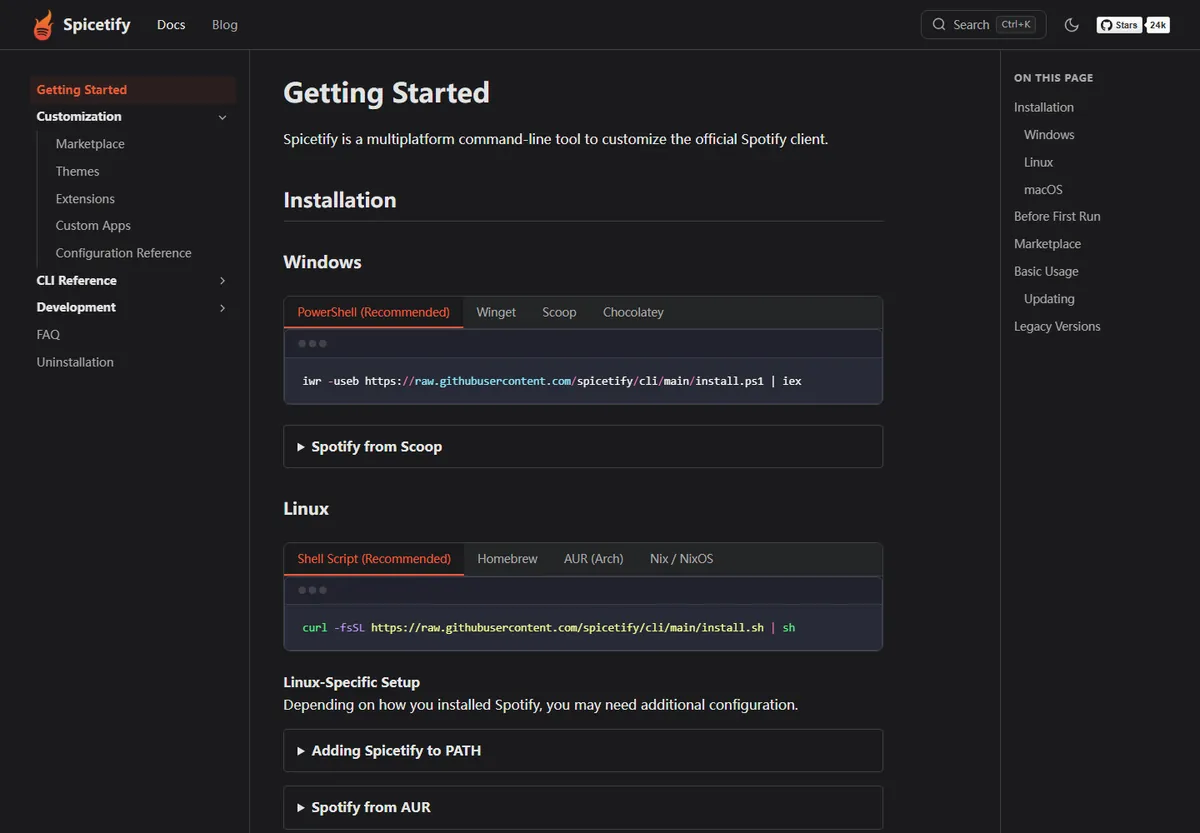
PowerShell or curl cannot download the installer
The official scripts are served from raw.githubusercontent.com. A corporate proxy, DNS filter, regional network block, TLS inspection, or temporary GitHub issue can interrupt that request. Test the exact raw URL in a browser and inspect the certificate and destination before changing commands.
Do not solve a blocked official URL by pasting an unknown mirror command. Use an official package manager such as Winget, Scoop, Chocolatey, Homebrew, or AUR, or manually download the matching file from the official GitHub release page.
- Windows: confirm PowerShell can reach raw.githubusercontent.com over HTTPS.
- macOS/Linux: run curl with its normal certificate validation; do not add insecure flags to bypass TLS errors.
- Managed network: ask the administrator whether GitHub raw content is filtered.
- Manual fallback: choose the exact official x64, ARM64, x32, Intel Mac, Apple Silicon, or Linux asset.
Fix 'spicetify command not found'
A successful installer can update PATH for future shells without changing the terminal that is already open. Close the terminal and start a new session before editing environment variables. On Linux and macOS, identify the active shell with echo $SHELL because zsh, bash, and fish load different profile files.
If two installation methods were used, your PATH may point to an older executable. Remove the duplicate through the package manager that installed it instead of deleting random files. Then reopen the shell and confirm the active version.
spicetify --version
Fix missing Spotify path or prefs errors
Open the Spotify desktop client and sign in for at least 60 seconds on a fresh installation. The web player does not create the local resources Spicetify expects. Then close Spotify and retry.
Package source controls the path. Homebrew on macOS uses /Applications/Spotify.app/Contents/Resources. Linux APT, AUR, spotify-launcher, and Flatpak use different locations. Check the official guide for your package instead of copying a path from another operating system or distribution.
| Symptom | Likely cause | Next check |
|---|---|---|
| prefs file missing | Spotify has not completed first run | Open, sign in, wait 60 seconds |
| spotify_path missing on macOS | Nonstandard app location | Confirm Spotify.app under /Applications |
| Linux path wrong | Guide does not match package source | Identify APT, AUR, Flatpak, or launcher |
| Store changes vanish | Documented Microsoft Store behavior | Reapply after closing Spotify |
Fix write permission errors without overcorrecting
Linux system packages can place Spotify under /usr/share/spotify or /opt/spotify. The official guide documents write permission changes for the Spotify directory and its Apps folder. Apply those commands only to the exact package path. Broad recursive permission changes across /usr, /opt, your home directory, or Applications create security and maintenance problems.
On Windows and macOS, confirm the path is correct before running an elevated terminal. Administrator or sudo access is not a universal fix for a missing preferences file, blocked network request, wrong CPU archive, or unsupported Spotify version.
Do not disable antivirus, Gatekeeper, certificate validation, or system protections just to force an install. Verify the official source and investigate the exact warning.
Fix apply errors after Spotify updates
Restore clean resources, create a new backup, and apply again with spicetify restore backup apply. If the CLI is behind, update it through its original installation method. Check the official release notes for the supported Spotify range before trying old versions.
When the newest Spotify build is not yet supported, wait for a Spicetify release. Repeated installs, arbitrary downgrades, and community patches from unknown sources add risk without fixing the missing compatibility layer.
For a useful bug report, include the operating system and architecture, Spotify installation source, Spotify version, Spicetify version, installation method, exact failing command, complete terminal output, and whether a clean restore succeeds. Remove access tokens, usernames, and unrelated personal paths before posting logs publicly.
Change one variable at a time. Start from a clean Spotify client and base Spicetify apply, then add Marketplace, a theme, and extensions gradually. This sequence distinguishes a core compatibility error from a community customization conflict and gives you a known point to return to.
spicetify restore backup apply
Spicetify download error evidence to collect
A Spicetify download error is much faster to solve when the report identifies the error stage. Record the operating system, architecture, shell, Spotify package source, Spotify version, Spicetify version, installation method, exact command, and complete terminal error message. State whether the raw GitHub script opens in a browser and whether spicetify --version works in a new terminal. Remove usernames, tokens, and unrelated personal paths before sharing logs.
Separate network errors from installation and apply errors. A TLS, DNS, proxy, or raw.githubusercontent.com error happens before the CLI is installed. A command-not-found error usually concerns PATH or duplicate installations. Missing prefs and Spotify path errors require a real desktop sign-in and the correct package location. Permission errors require narrow changes to the documented directory, while a compatibility error requires a supported Spotify and Spicetify release pair rather than broader access.
After identifying the Spicetify download error category, change one variable and repeat the same error check. Avoid switching installers, disabling antivirus, applying recursive permissions, and adding Marketplace at the same time. A clean Spotify client plus one known CLI executable provides the baseline. Once spicetify backup apply succeeds, add optional customizations gradually so a later extension conflict remains distinct from the original download error or installation error.
Spicetify error FAQ
Why can I not download Spicetify?
Check whether raw.githubusercontent.com is blocked, then use an official package manager or official GitHub release as the fallback. Avoid third-party mirrors.
Why is the Spicetify command not found after installation?
Open a new terminal so PATH changes load. If it still fails, check the active shell profile and remove duplicate installations.
Why can Spicetify not find Spotify?
Use the desktop client, complete the first sign-in, and confirm the path matches the way Spotify was installed.
Should I disable antivirus to install Spicetify?
No. Verify the official source and inspect the exact warning. Do not disable protection as a generic workaround.
Official sources used
- Official Getting Started — Paths, permissions, install commands, and update recovery.
- Official FAQ — Project troubleshooting and common questions.
- Latest release — Compatibility, fixes, files, and attestations.