
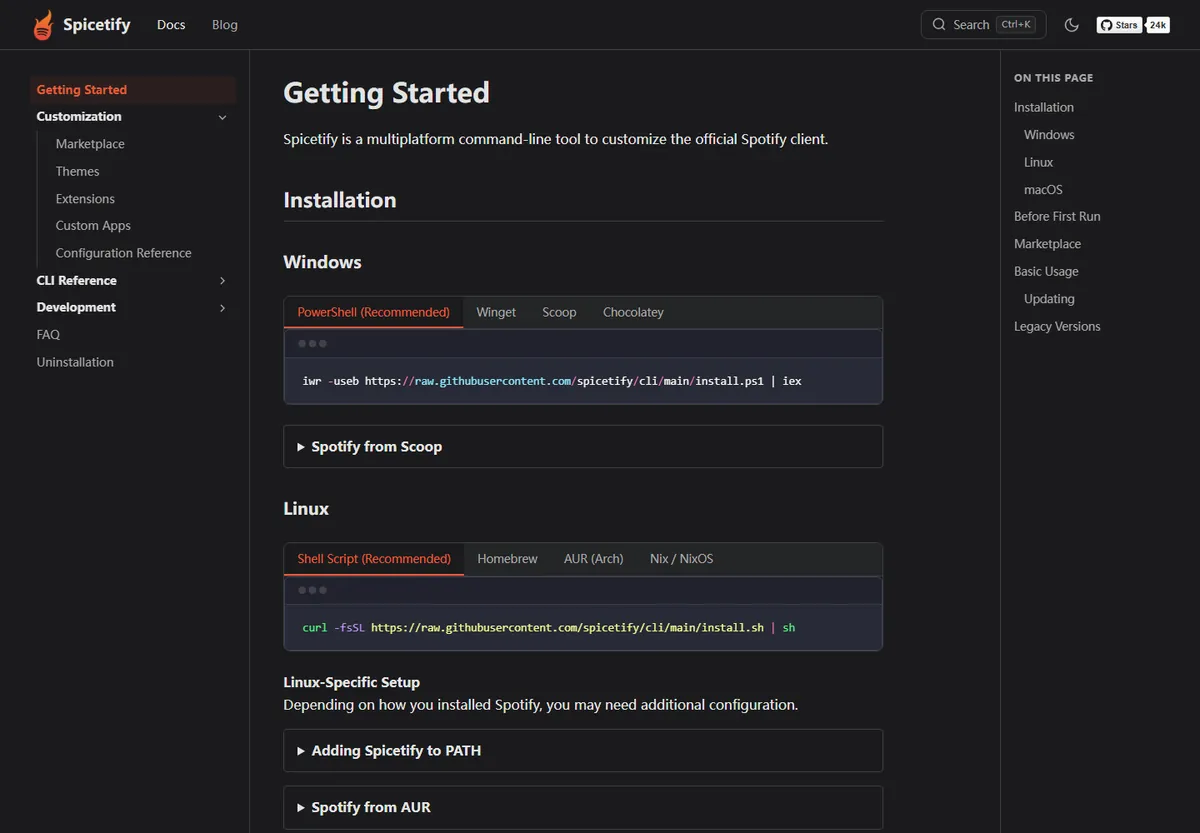
Spicetify is a command-line customization layer for the installed Spotify desktop client. It is not a separate player. Start by confirming the CLI works, closing Spotify, and applying a clean backup; then choose one focused guide for Marketplace, a theme, an extension, a custom app, or a command.
Use this Spicetify guides directory to choose the page that matches the task. The linked tutorials keep platform setup, customization choices, and recovery instructions separate, so you can follow the right steps without repeating a broad installation workflow.
What these Spicetify guides cover
Each guide answers one practical question and points to the next useful step.
Spicetify changes supported resources in the official Spotify desktop client through a command-line interface. These guides explain how to use that layer, choose optional customizations, and recover when Spotify or an add-on changes. Spotify still handles sign-in, playback, your library, and account features.
A first-time user should install and open Spotify, install Spicetify from an official source, verify the command, and create a clean backup before applying changes. The getting-started page walks through that first session; returning users can go straight to the guide for their task.
- Beginner setup and the first backup/apply workflow.
- Themes, extensions, custom apps, snippets, and Marketplace.
- Command examples, update recovery, and installation problems.
Using Spicetify guides to choose your next step
Match the problem you have now to one focused destination instead of trying several fixes at once.
If two symptoms appear at once, start with the earliest failed check. If Spotify itself will not open, restore a working desktop client before troubleshooting an optional catalog. The getting-started tutorial establishes a baseline; the command reference explains apply, backup, restore, and update.
| Your task | Open this guide | What it helps you do |
|---|---|---|
| I installed Spicetify and do not know what to run next | Getting started | Verify the CLI, apply a clean baseline, and add one customization. |
| I want a new Spotify look | Themes | Compare theme styles, choose a source, apply a scheme, and switch back. |
| I want to add behavior or a sidebar page | Extensions or custom apps | Understand the difference and follow the matching installation path. |
| I need a command or configuration value | PowerShell commands | Find commands by task and check their effect before running them. |
| Spotify changed or Marketplace disappeared | Update and troubleshooting | Check compatibility, reapply safely, and isolate the failing layer. |
How themes, extensions, apps, and snippets differ
Choose the smallest customization that produces the result you want.
A theme primarily changes how Spotify looks: colors, spacing, typography, artwork treatment, or layout details. An extension adds behavior to an existing view, such as a shortcut or a focused control. A custom app creates a larger page or destination in Spotify. A snippet is usually a narrow CSS adjustment. These categories can have dependencies, so read the project's instructions before installing a bundle of files.
Marketplace can make discovery and basic management easier, but an item listed there may still be maintained by a community author. Check the source repository, recent maintenance, compatibility notes, and removal instructions. Do not assume that popularity means an item is official or security-reviewed. The CLI and an add-on are separate layers, which is why testing one addition at a time makes problems easier to trace.
Make the first experiment reversible. Record one theme or small extension and its source, apply it, then inspect Home, Search, Your Library, and a playlist. If something breaks, remove or disable that item before changing unrelated settings.
| Type | Main change | Good first check |
|---|---|---|
| Theme | Visual style and color scheme | Confirm text and controls remain readable. |
| Extension | Behavior inside an existing Spotify view | Test the specific control or shortcut it adds. |
| Custom app | A separate page or sidebar destination | Open its page and check its documented dependencies. |
| Snippet | A small CSS or configuration change | Keep the previous value so the change is easy to undo. |
Use Marketplace or install a customization manually
Marketplace is convenient for browsing, while manual installation offers more direct control over local files.
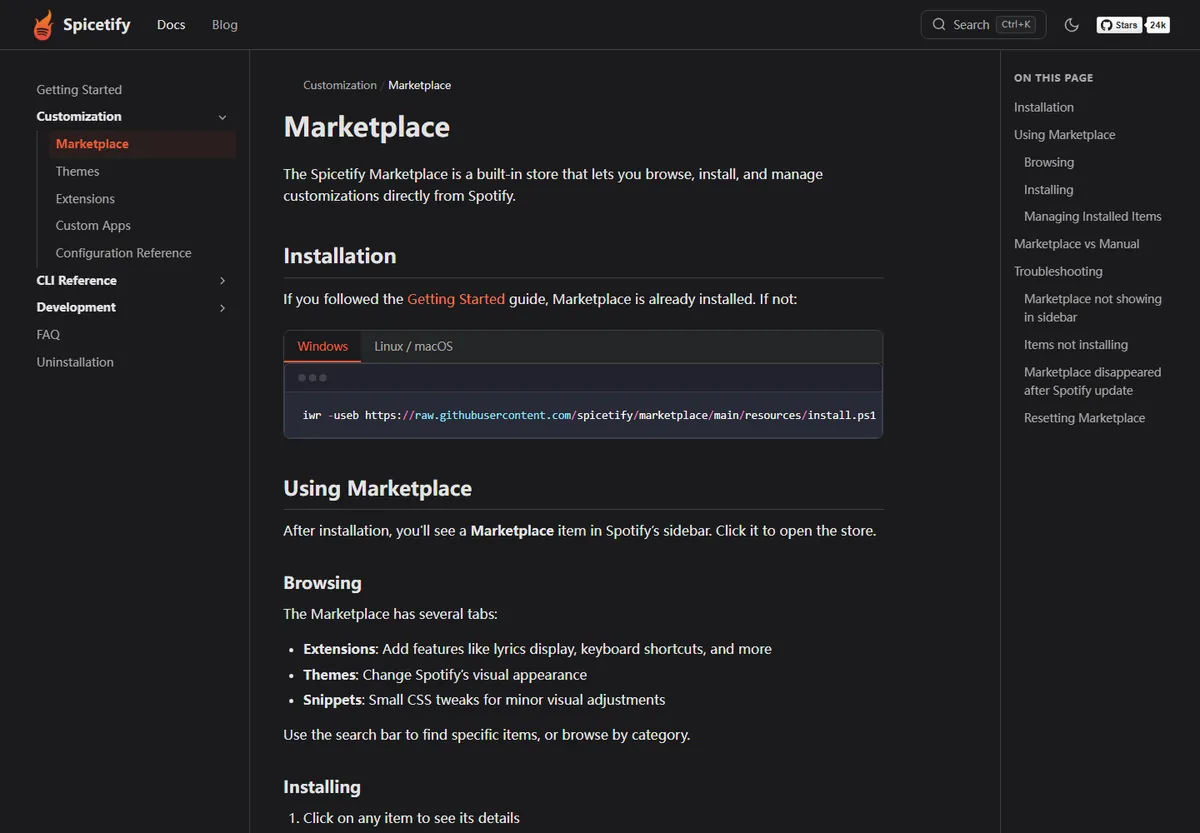
The official Marketplace documentation describes a catalog for browsing, installing, and managing customizations inside Spotify. Open it from the sidebar, find themes, extensions, or snippets, and read the item's description and dependencies before installing.
Manual installation suits items not listed in Marketplace or projects that document a repository workflow. Preserve the original directory structure and check the maintainer, source, recent activity, issues, and compatibility notes. After a Spotify update, check whether client resources were replaced before reinstalling every item.
First confirm that Spotify launches with a clean Spicetify apply. Add Marketplace or one customization only after that baseline works.
Build a low-risk first Spicetify session
A small, ordered test creates a useful baseline for future changes.
This order separates command discovery, the clean backup, apply, and optional add-ons. If a failure starts after one recorded change, you have a smaller area to inspect. Use normal user permissions unless official instructions require elevation; also check that Spotify is closed and the package permits local modification.
- 1
Confirm the desktop client
Open the supported Spotify desktop app, sign in, and let it finish creating its local files. Close it before modifying resources.
- 2
Verify the command
Open a new terminal and run spicetify --version. If the command is missing, repair the installation or PATH before trying apply.
- 3
Apply the clean baseline
Follow the first-run guide to create or refresh the supported backup and apply the basic configuration. Read the terminal output and stop on the first clear error.
- 4
Add one optional item
Install Marketplace if needed, then test one theme, extension, app, or snippet. Keep its source and removal path with your notes.
- 5
Check normal Spotify views
Reopen Spotify and inspect Home, Search, Your Library, and a playlist. Only add another item after the first change behaves as expected.
Troubleshoot a change without starting over
The right recovery step depends on whether Spotify, the CLI, Marketplace, or one add-on is failing.
First identify what still works. If Spotify opens but a theme looks wrong, inspect that theme or scheme. If Marketplace is missing, check its installation and whether an apply is needed. If Spotify itself is broken, return to a clean baseline before investigating a community extension.
After a Spotify update, resources may have been replaced. Check current CLI compatibility, close Spotify, and follow the update or backup/apply guide. Preserve the first error and last successful action. For a failed add-on, remove only that item when its instructions provide a clear path; otherwise test the clean baseline before reintroducing changes one at a time.
| What you observe | Check first | Next guide |
|---|---|---|
| Command is not recognized | New terminal, install source, and PATH | Install errors and command reference |
| Spotify changed after an update | Current CLI compatibility and replaced resources | Update and post-update recovery |
| Marketplace is missing | Base apply, sidebar entry, and package support | Marketplace installation and troubleshooting |
| A theme or extension breaks a view | The last item added and its removal instructions | Theme or extension guide |

Keep a stable, understandable customization setup
A short record of your working setup makes future updates less disruptive.
Record how Spicetify was installed, the Spotify package, the active theme, and each enabled extension or custom app. Include source links and dependencies so you can check what changed when Spotify updates.
Restore returns supported Spotify resources to a saved baseline; uninstall removes the CLI or related files. Use the matching guide before deleting folders so you do not remove settings or backups you still need.
- Keep official core commands separate from community add-on instructions.
- Record one working baseline and the last change that was made.
- Use restore for a clean comparison and uninstall only when removal is the goal.
Spicetify guides FAQ
What should I read first after installing Spicetify?
Start with the getting-started guide. Verify the CLI, close Spotify before modifying its resources, apply a clean backup, and confirm Spotify opens before adding Marketplace or another customization.
Are Spicetify themes and extensions the same thing?
No. Themes mainly change Spotify's visual presentation; extensions add or change behavior. Custom apps create separate destinations, and snippets make narrower styling adjustments.
Do I need Marketplace to use Spicetify?
No. Marketplace is an optional catalog and management interface. Spicetify's CLI can work without it, and some customizations can be installed manually by following their source instructions.
What should I do if Spicetify stops working after a Spotify update?
Check official compatibility and update guidance, then determine whether Spotify replaced modified resources. Follow the documented backup/apply recovery path and test optional add-ons separately.
Can Spicetify guides help download Spotify songs?
No. Spicetify customizes the desktop client; it is not a music or MP3 downloader and does not replace Spotify's supported offline listening feature.
Where can I find official Spicetify instructions?
Use the documentation at spicetify.app and the source and release repositories under github.com/spicetify. Community add-ons should be checked at their own source repositories.
Official sources used
- Official Spicetify Getting Started — Core CLI purpose and platform installation guidance.
- Official Marketplace documentation — Marketplace categories, item management, and recovery guidance.
- Official Themes documentation — Marketplace and manual theme installation and removal.
- Spicetify CLI source and releases — Official project source and release information.