
Install and open the Spotify desktop client first, sign in for at least 60 seconds, and then close Spotify. On Windows, run the official PowerShell command shown above. On macOS or Linux, run curl -fsSL https://raw.githubusercontent.com/spicetify/cli/main/install.sh | sh. Finish with spicetify backup apply.
What you need before installing Spicetify
Spicetify customizes files used by the official Spotify desktop client. It is not a replacement Spotify application, so installing the CLI before Spotify leaves it with nothing to modify. Download Spotify from a legitimate desktop source, open it, sign in, and let it remain open for at least 60 seconds on a fresh installation. This creates the local preferences and application data that Spicetify checks.
Close Spotify before the first apply operation. You also need a terminal: PowerShell on Windows or Terminal on macOS and Linux. Administrator access is not normally the goal; use elevated privileges only when the documented package location genuinely requires permission changes.
- A supported Spotify desktop client, not the web player
- A working internet connection to GitHub raw content and releases
- PowerShell on Windows or a standard shell on macOS/Linux
- A few minutes to create a backup before applying changes
Run the official Spicetify install command
The official installer is the recommended download method because it selects the current release and sets up the CLI location for you.
Open PowerShell as your normal Windows user, paste the command below, and press Enter. The script is hosted inside the official spicetify/cli GitHub repository. You can open the raw URL in a browser and inspect the script before running it.
On macOS and Linux, use the shell command listed in the dedicated platform guides. Package managers such as Winget, Scoop, Chocolatey, Homebrew, and AUR are valid alternatives, but future updates should use the same package manager that performed the installation.
iwr -useb https://raw.githubusercontent.com/spicetify/cli/main/install.ps1 | iex
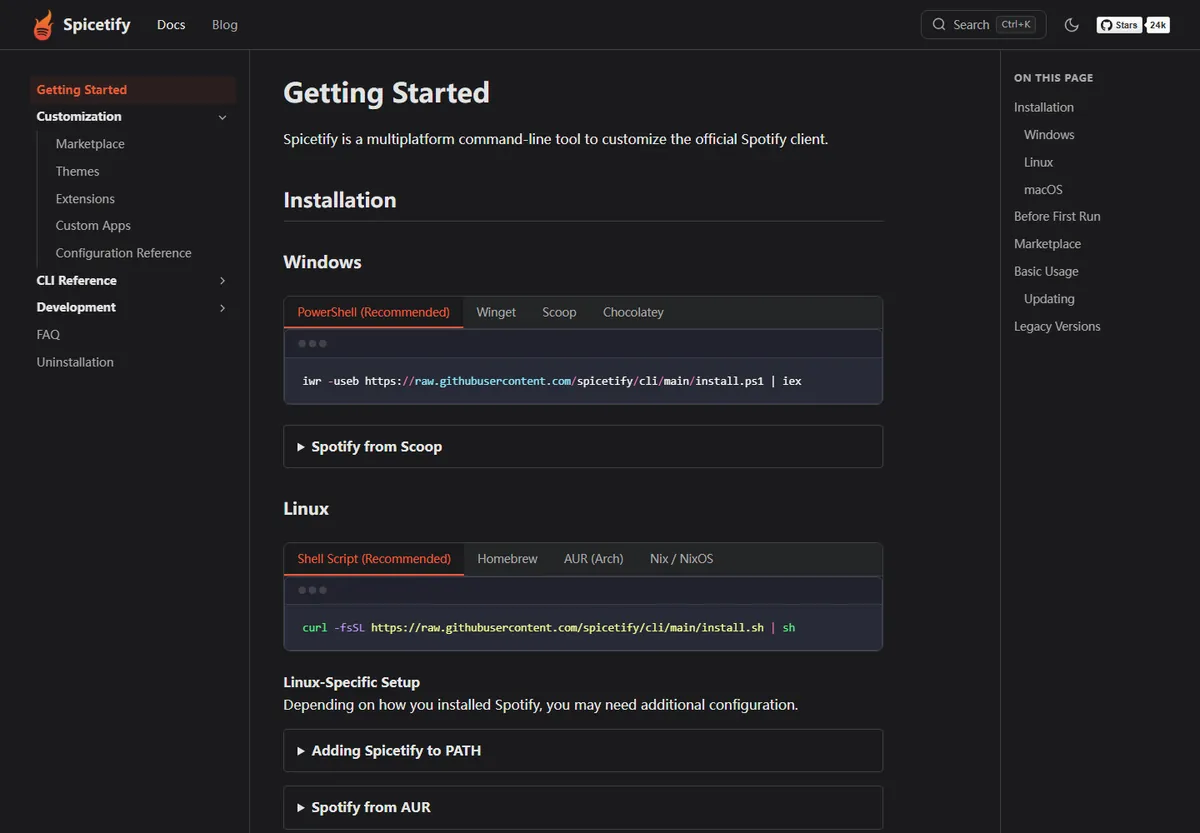
Create a backup and apply Spicetify
Installing the CLI does not immediately modify Spotify. The first apply command creates a backup of the original client resources and then applies the current Spicetify configuration. Keeping that backup is important because it gives the restore command a known clean state.
If Spotify is still running, close it before applying. When the command completes, start Spotify normally. A successful first run may look close to stock Spotify until you add a theme, extension, custom app, or Marketplace.
- 1
Confirm the CLI
Open a new terminal and confirm the command is available.
spicetify --version - 2
Close Spotify
Exit the desktop client completely instead of leaving it minimized in the system tray.
- 3
Back up and apply
Create the clean backup and apply the current configuration.
spicetify backup apply - 4
Open Spotify
Launch Spotify again and verify that it starts normally before adding more customizations.
A backup makes later restore and update recovery predictable. If you modify files manually first, restore Spotify to a clean state before creating the backup.
Install Marketplace after the CLI works
Marketplace adds a catalog inside Spotify for themes, extensions, custom apps, and snippets. Treat it as a second step, not as the Spicetify CLI itself. Verify that spicetify --version and spicetify backup apply work before adding Marketplace. This separation makes troubleshooting much easier.
Current guided installations may offer Marketplace automatically. If it is missing, use the official Marketplace installer shown in our dedicated guide. After Spotify updates, reapply Spicetify before assuming that every Marketplace item must be downloaded again.
Keep Spicetify working after updates
Spotify periodically replaces its application files. When a theme disappears after an update, the CLI is usually still installed. Run spicetify backup apply first. If the installed CLI does not support the new Spotify release, run spicetify update or update through the package manager you originally used.
Never force a legacy build onto a Spotify version that the official release notes do not support. Waiting for a compatibility release is safer than repeatedly reinstalling or changing files by hand.
A healthy installation is easy to verify: spicetify --version returns one clear CLI version, Spotify opens without a repair prompt, and spicetify backup apply finishes without a path or permission error. Record the installer method you used so future updates come from the same source. If you later switch from a package manager to the script installer, remove the old package cleanly first so the terminal does not select a stale executable.
Keep the official documentation and release page bookmarked rather than saving a copied command from a social post. The install script URL can remain stable while the release behind it changes, and the release notes are where platform files, compatibility ranges, attestations, and known caveats are documented.
How to install Spicetify without creating duplicate setups
Knowing how to install Spicetify safely is mostly about keeping the installation path predictable. Choose the official script or one package manager, complete the first Spotify sign-in, and test the CLI before adding Marketplace. This order gives every failure a clear boundary: download, PATH, Spotify path, backup, apply, or optional customization. If a command fails, record its complete output before running a different installer.
After you install Spicetify, open a fresh terminal and check spicetify --version. Then close Spotify and run spicetify backup apply. The version command proves that the shell can find the CLI, while the apply command proves that it can locate and modify the supported desktop client. A visible theme is not required for this base verification because a default configuration can look similar to stock Spotify.
Keep the installation method with your maintenance notes. Script users should follow the official CLI updater; Homebrew, Winget, Scoop, Chocolatey, AUR, and Nix users should update through the package manager that owns the executable. This prevents an older duplicate from taking precedence on PATH and makes future troubleshooting repeatable. When you need to reinstall, restore Spotify first and remove the previous package through its original manager.
- Verify one active Spicetify executable in a new terminal.
- Confirm Spotify opens normally after backup and apply.
- Add Marketplace only after the base installation passes.
Spicetify installation FAQ
Do I install Spotify before Spicetify?
Yes. Install the Spotify desktop client, open it, sign in for at least 60 seconds, and then close it before the first Spicetify apply.
Is Spicetify an app with a normal installer?
Spicetify is primarily a command-line tool. Official scripts and package managers install the CLI; manual archives are available on GitHub for specific platforms.
What command should I run after installation?
Run spicetify backup apply to create a clean backup and apply the current configuration.
Does installing Spicetify also install Marketplace?
Some guided setups offer Marketplace, but it is a separate project. Install it only after the CLI itself works.
Official sources used
- Spicetify Getting Started — Official platform commands, first-run, update, and Marketplace instructions.
- Spicetify CLI releases — Official versions, assets, compatibility, and release notes.