
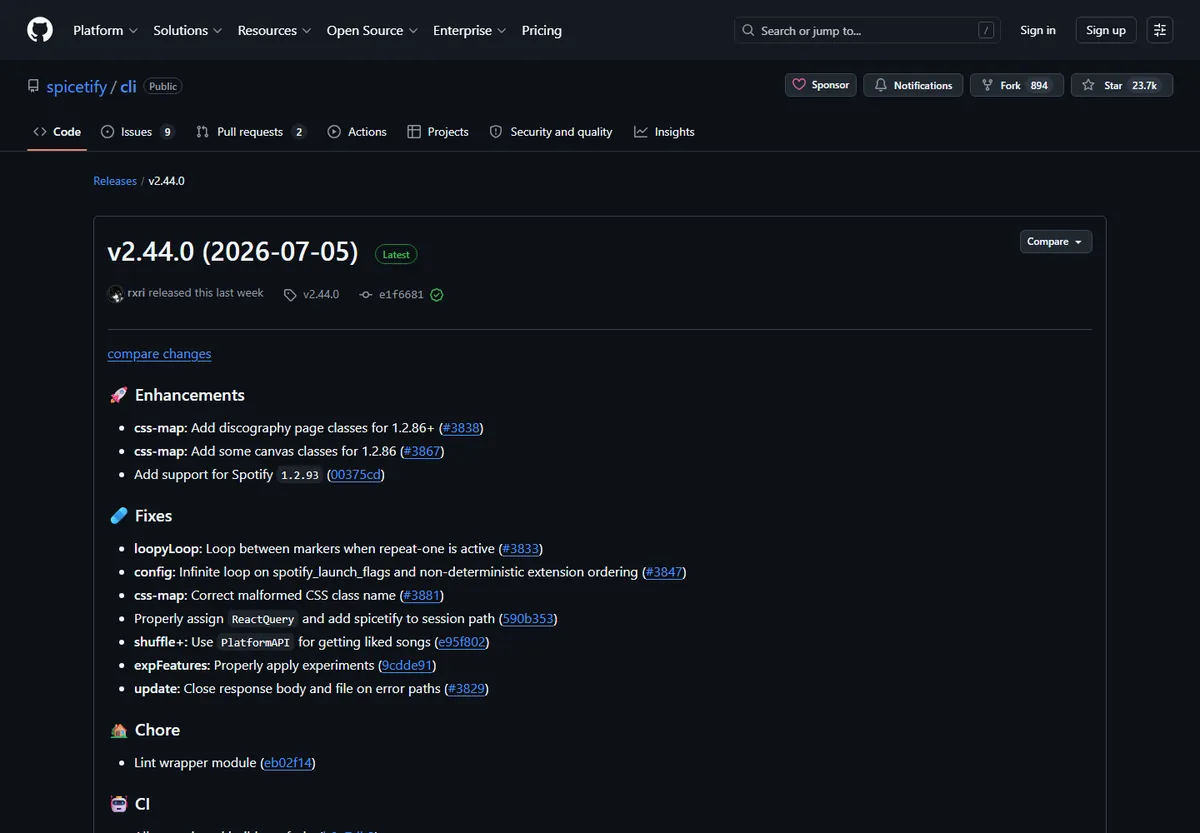
Spicetify v2.44.0 officially lists Spotify 1.2.14 through 1.2.93 on Windows, macOS, and Linux. The Windows Microsoft Store version is included, although the release notes warn that it may require Spicetify to be applied after each close.
Which Spotify versions work with Spicetify v2.44.0?
The official v2.44.0 release published July 5, 2026 adds support for Spotify 1.2.93 and lists the compatible range as 1.2.14 through 1.2.93 for Windows, macOS, and Linux. This is release-specific information, not a permanent rule. A newer Spicetify release can extend or change the range.
Check your active CLI with spicetify --version and Spotify's About screen for the client version. Compare both with the newest GitHub release rather than relying on an old video or Reddit post.
| Platform | Spotify range in v2.44.0 | Important note |
|---|---|---|
| Windows desktop | 1.2.14-1.2.93 | Normal supported range |
| Windows Microsoft Store | 1.2.14-1.2.93 | May require apply after each close |
| macOS | 1.2.14-1.2.93 | Intel and Apple Silicon CLI files available |
| Linux | 1.2.14-1.2.93 | Package path and permissions still matter |
Microsoft Store Spotify vs the desktop installer
The current release explicitly supports Spotify for Windows from the Microsoft Store. However, it also warns that some users may need to apply Spicetify every time they close the Store version. That makes the Store build supported but potentially less convenient for persistent customizations.
If you already use the Store version and Spicetify works, there is no need to replace it solely because an old guide says it is unsupported. If the repeated apply behavior affects you, consider the desktop installer from Spotify's official website. Keep only one active Spotify installation to avoid path ambiguity.
Compatibility advice changes. The v2.44.0 notes support Microsoft Store Spotify while documenting a specific persistence caveat.
What to do when Spotify updates first
Spotify can update automatically before Spicetify publishes new CSS mappings or resource support. Start with spicetify backup apply. If the CLI reports incompatibility, check for a new release and run spicetify update or your package manager's upgrade command.
When no compatible release exists yet, wait. Reinstalling the same CLI does not change its supported code. Downgrading Spotify can be a temporary advanced workaround, but it should follow current official guidance rather than an arbitrary old-version download.
spicetify backup apply
When an older Spicetify version makes sense
The official Getting Started page includes a legacy route for Spotify v1.1.56 or older and points to Spicetify v1 resources. That is a specialized compatibility path, not the normal choice for a current Spotify desktop client.
Use old versions only when you have a documented reason, understand that features and fixes may be missing, and obtain them from the official project's release history or legacy branch. Never download a repacked older build from a generic software mirror.
Choose the right Spotify client for Spicetify
- Use the desktop application; Spicetify does not customize the web player.
- Open a fresh installation and sign in for at least 60 seconds before the first apply.
- Use only one active Spotify installation source so paths remain predictable.
- On Linux, avoid Snap Spotify because the official guide says Snap apps cannot be modified.
- After every major Spotify update, confirm the newest official Spicetify compatibility notes.
- Record the working pair of Spotify and Spicetify versions before changing either one. This makes a regression easier to identify without assuming the newest component is always at fault.
- Do not run two Spotify installations at once. Store, desktop, Flatpak, APT, AUR, and launcher builds use different paths, and Spicetify may detect the wrong resources when old copies remain.
- Use spicetify --version for the CLI and Spotify's About interface for the client. File names and package-manager labels are not reliable substitutes for the active runtime versions.
- When a compatibility release arrives, update through the same installer or package manager that owns the current CLI, then restore, back up, and apply again.
Verify both versions before changing the installation
Run spicetify --version in a new terminal to identify the CLI actually selected by PATH. In Spotify, open the About area and record the complete desktop client version. Compare that pair with the newest release on github.com/spicetify/cli/releases. The file name you downloaded months ago does not prove which executable or Spotify build is active today.
If the pair is inside the published range but apply still fails, investigate package path, permissions, backup state, and community customizations. If the Spotify version is newer than the published maximum, wait for release support or follow current official guidance. This decision prevents compatibility problems from being misdiagnosed as PowerShell, Homebrew, or PATH failures.
Keep screenshots or copied version text with a support request, but remove usernames, access tokens, and unrelated personal paths. Precise version evidence lets maintainers reproduce the problem without guessing which Store, desktop, Flatpak, APT, or other package is involved.
What Spotify version to download for Spicetify before installing
When deciding what Spotify version to download for Spicetify, start with the compatibility range in the newest official CLI release, not a fixed version copied from an old tutorial. For Spicetify v2.44.0, the published range is Spotify 1.2.14 through 1.2.93 on Windows, macOS, and Linux. Confirm the current release again before installing because Spotify and Spicetify can update independently.
Choose one legitimate Spotify desktop package that Spicetify can locate and modify. Windows supports the Microsoft Store client in the current release, although the documented repeated-apply behavior can make the Spotify.com desktop installer more convenient for some users. macOS users should keep Spotify under /Applications. Linux users must account for APT, AUR, Flatpak, Nix, or other package-specific paths, and should avoid Snap for this use case.
The practical answer to what Spotify version to download for Spicetify is the newest official desktop build inside the range supported by the newest CLI release. If Spotify is newer than the listed maximum, wait for support or follow current official guidance. If both versions are compatible but apply fails, investigate paths, permissions, backup state, and extensions instead of downgrading immediately. Record both complete version strings before making changes.
Spotify version compatibility FAQ
What Spotify version should I download for Spicetify?
For Spicetify v2.44.0, use a Spotify desktop version in the officially listed 1.2.14 through 1.2.93 range.
Does Microsoft Store Spotify work with Spicetify?
Yes, v2.44.0 lists it as supported, but the official notes warn that you may need to reapply after closing Spotify.
Does Spicetify work with the Spotify web player?
No. Spicetify modifies the desktop client and requires local Spotify application resources.
Should I download an old Spotify version?
Only when current official Spicetify guidance documents that need. Prefer a current supported combination and avoid generic old-version mirrors.
Official sources used
- Spicetify v2.44.0 release — Official Spotify range and Microsoft Store caveat.
- Official Getting Started — First-run, platform package, update, and legacy guidance.